How to Switch Between Rider and Driver Mode in the GetRide App
Learn how to easily switch modes in the GetRide app and take full control of your rideshare experience.
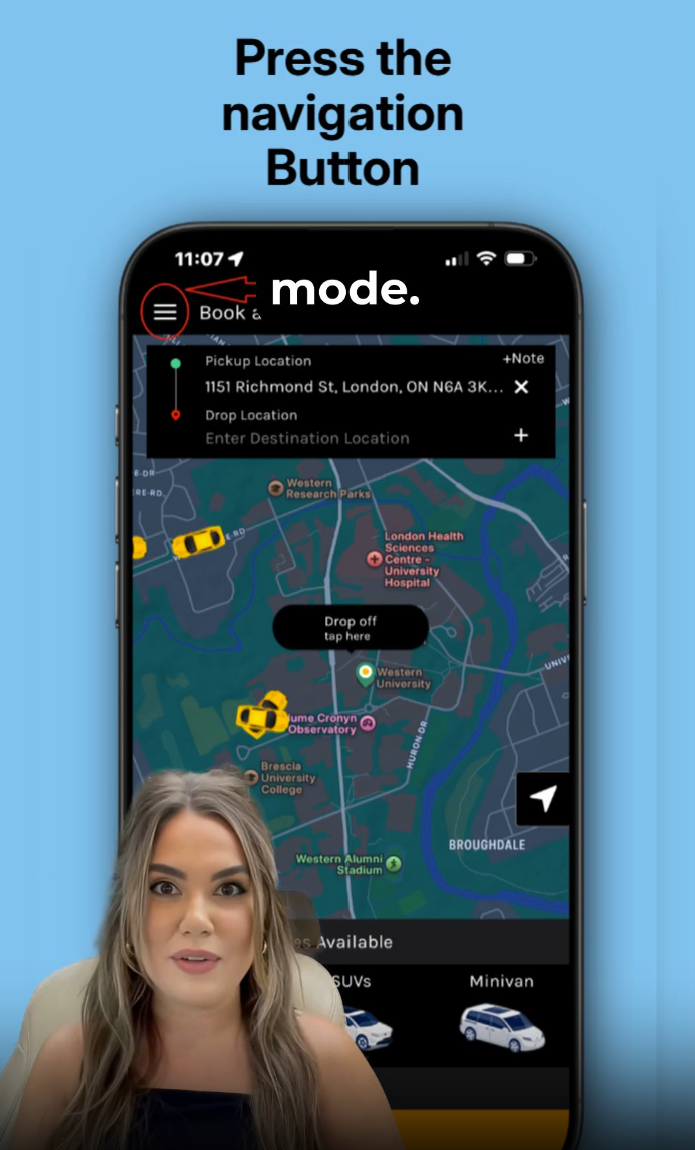
One of the standout features of the GetRide app is the ability to switch smoothly between Rider Mode and Driver Mode using the same account. Whether you want to request a ride or start earning as a driver, GetRide makes the process simple and flexible. Here’s how it works: Open the GetRide app in Rider Mode. Tap the navigation button at the top of the screen. Select "Continue as Driver." If you're new, upload the required documents and wait for approval. Once approved, use the Availability button to go online or offline as a driver. You can switch back to Rider Mode at any time with just a tap. Watch our step-by-step video guide here: Watch on YouTube This quick video walks you through each step, so you can start driving or riding confidently with GetRide. With GetRide, you’re always in control— ride or drive, anytime, all from one app. Need help? Contact us at support@getservice.ca . Available in Canada and the USA.